
Masking lineart with Vertex Colors in PSoft Pencil+
Have you ever been trying to apply lineart to a character, and run into this issue? Certain contours are getting traced, creating undesirable lines that look bad at extreme angles.
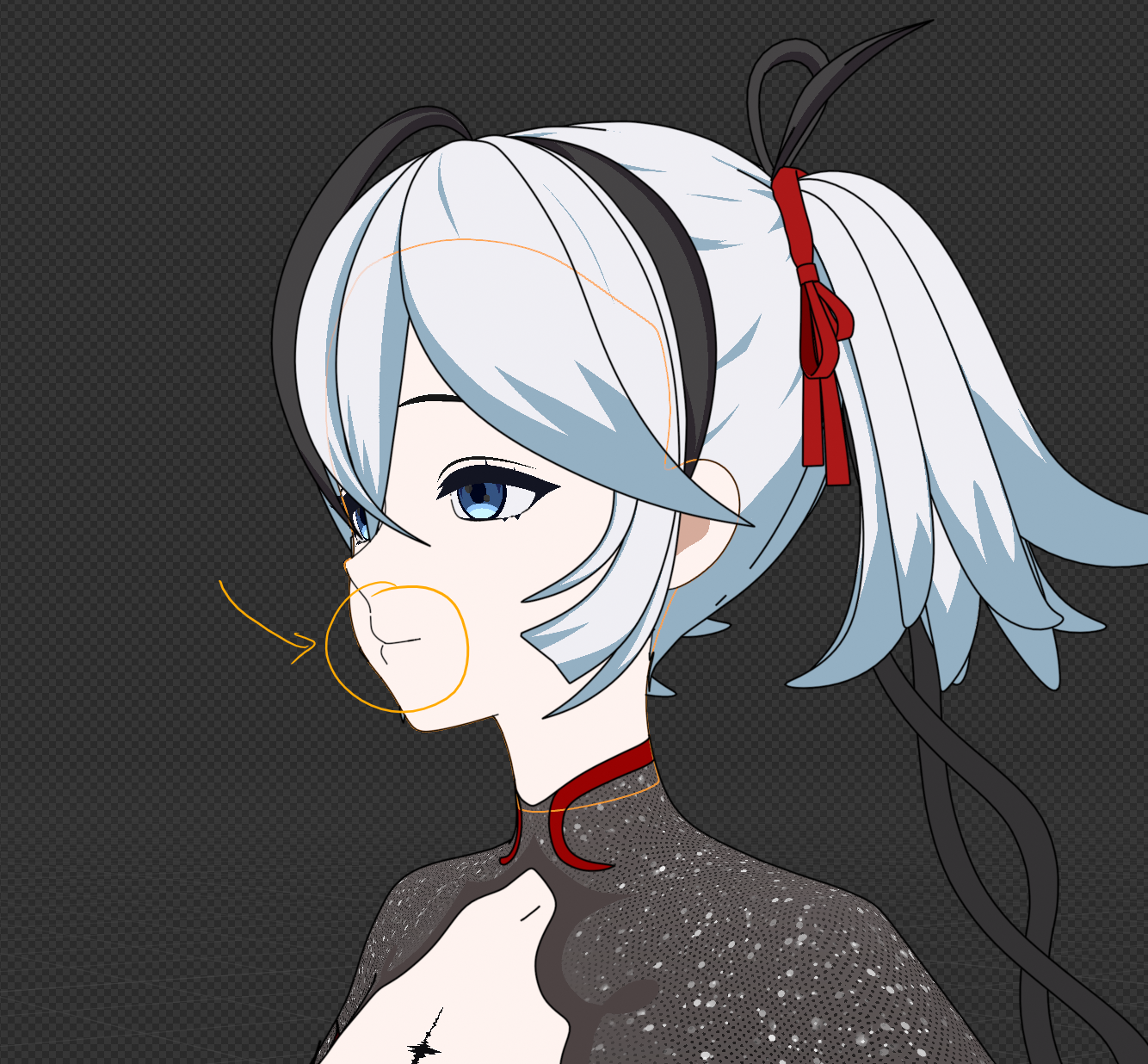
This guide will help you solve this problem. To do it, we'll create Vertex Color Attributes and apply them as a Size Map in PSoft.
I'm going to assume you already have PSoft lineart set up on your character. If you don't (todo: make a PSoft setup guide?)
Step 1:
With your character's face object (or other object that you want to modify the lines on) selected, Go to the Object Data Properties and add a new Color Attribute.
Call it something like LA_Contour, since we'll be using it to mask the Lineart's Contour lines.
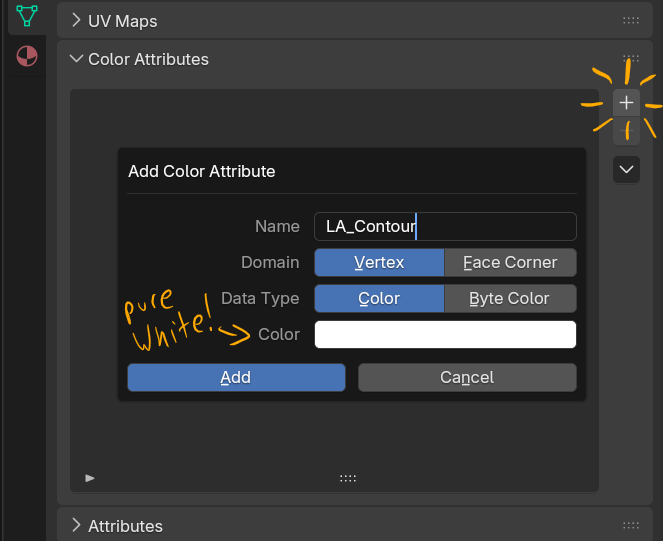
Step 2:
With that Color Attribute selected, go into Vertex Paint mode and paint a mask on your mesh.
White = Yes lines!
Black = No Lines!
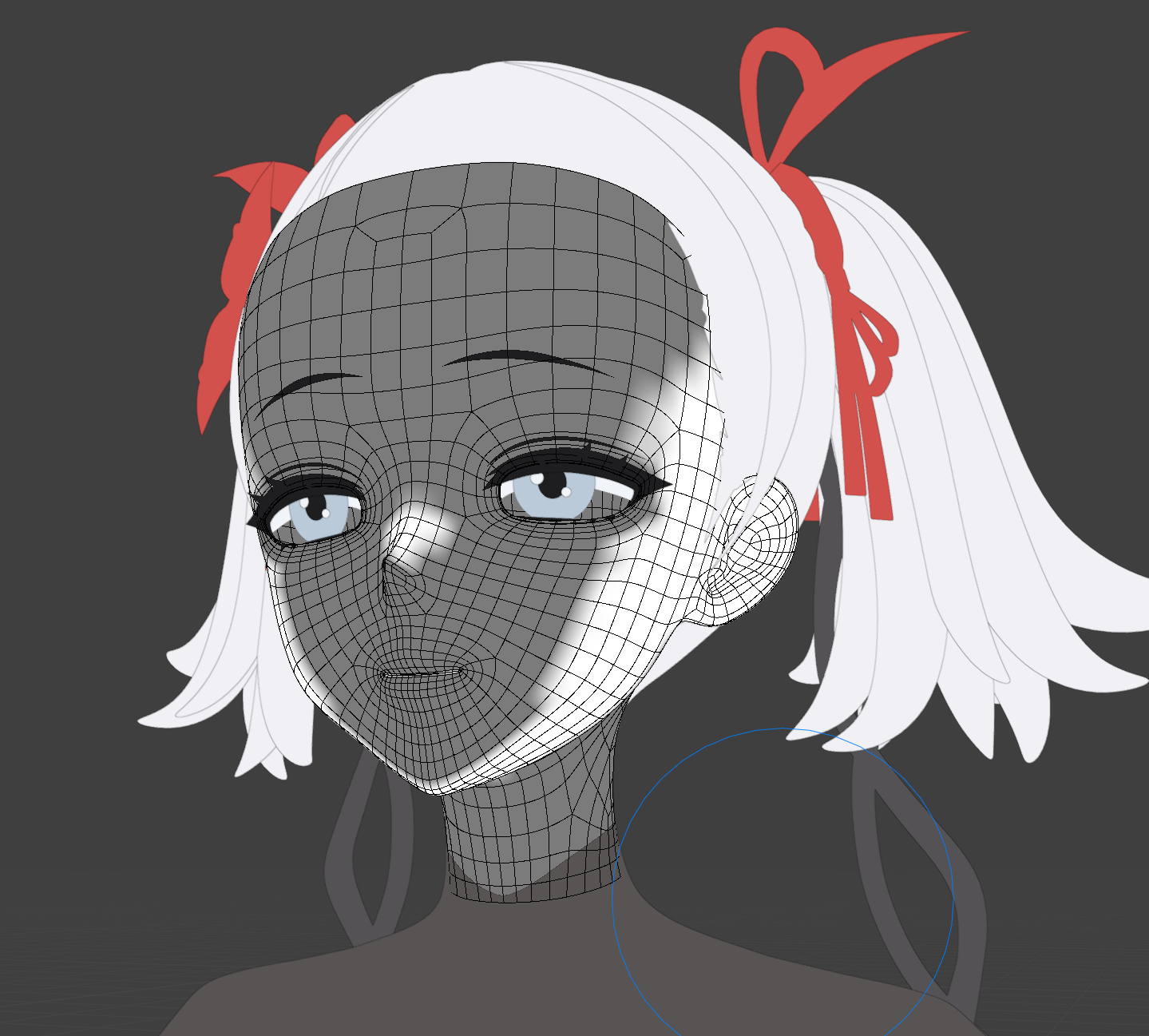
Step 3:
Go into the Pencil+ editor and select the Line Set that includes your Face.
Scroll down to the Edge properties, and find the "Object" tab.
Check "Specific Brush Settings."
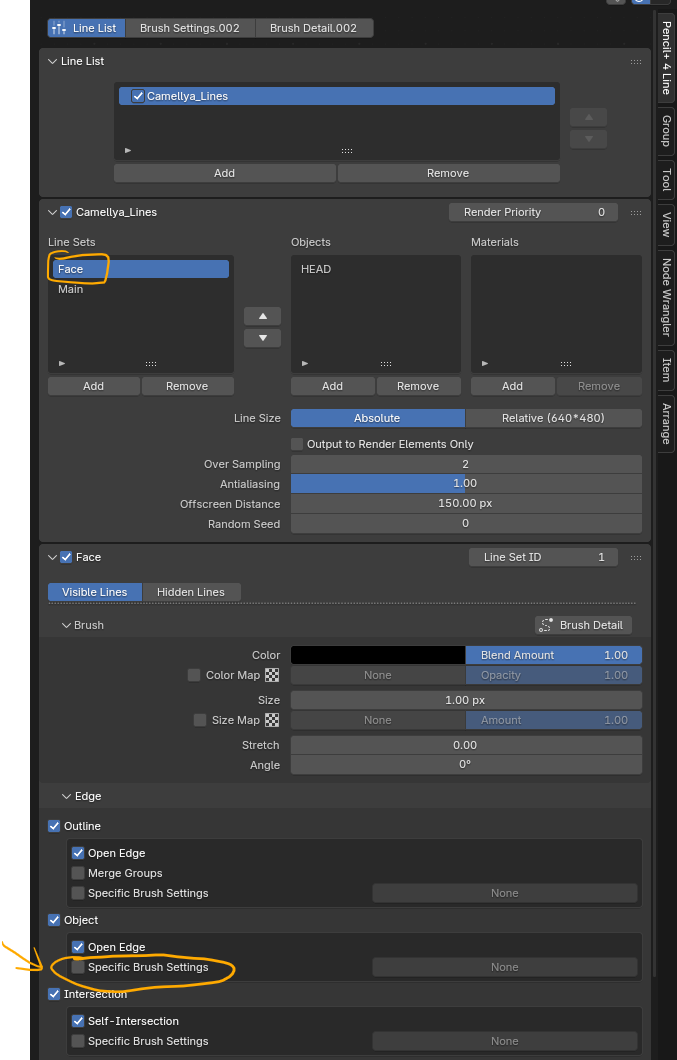
Pencil+ will automatically create a new Brush Settings group for you to edit. Click it to go inside it and do so.

Step 4:
In the Brush Settings, check "Size Map"
If you'd rather have a stroke fade in opacity instead of get thinner as it approaches the masked area, use "Color Map" with opacity set to zero.
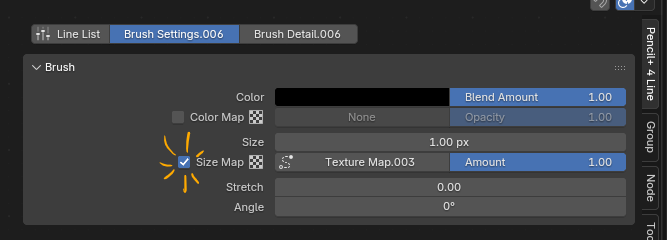
Finally, to define the texture to use, click on "Texture Map"
Step 5:
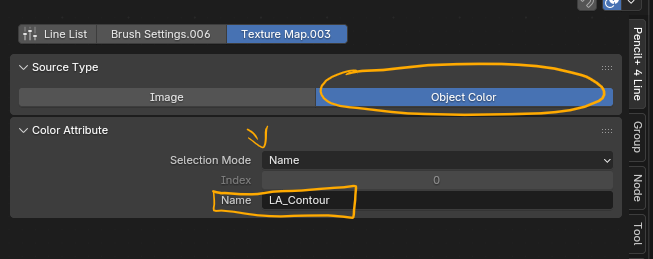
In the Texture Map, switch the Source Type to "Object Color."
Under Color Attribute, set the Selection Mode to "Name" and type in the name of the Color Attribute we made earlier.
Step 6:
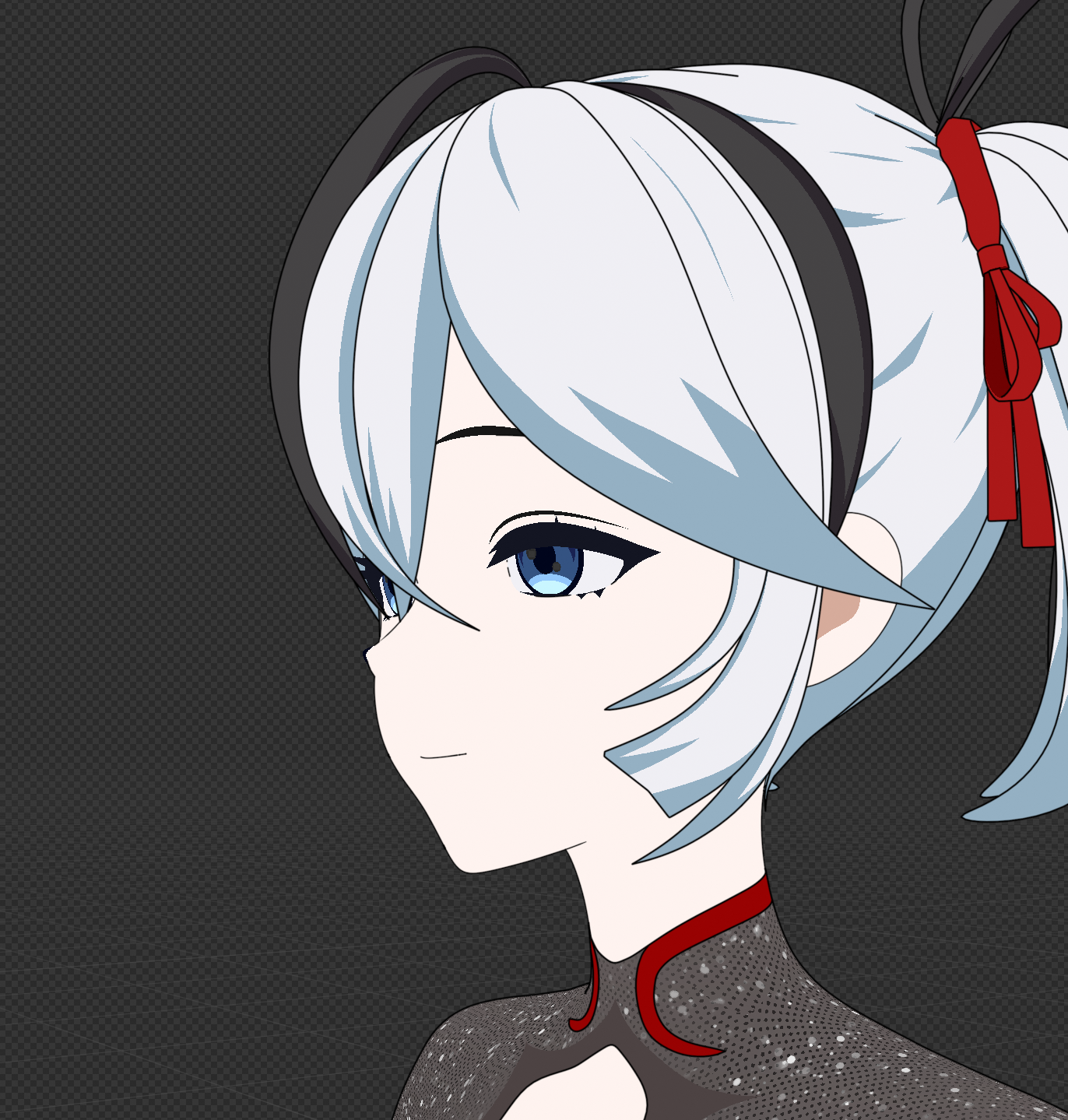
Refresh your viewport preview lines and bask in your glory!
Extra things to consider:
These settings don't actually stop lines from drawing in those undesirable areas, they only make them invisible. For our purposes, that's plenty. But some pipelines may be incompatible with this.
You can also use Vertex Colors in the exact same way presented here to control line thickness. Pencil+ lines get multiplied by whatever value you chose when vertex painting.
ex: Painting a grey value of 0.5 brightness (with 1.0 being the highest) will half the thickness of the line.
You can also use vertex painting to mask Intersection influence.
Using Pencil+'s node editor, you can make one vertex group and Brush Setting apply to several different Line Sets.
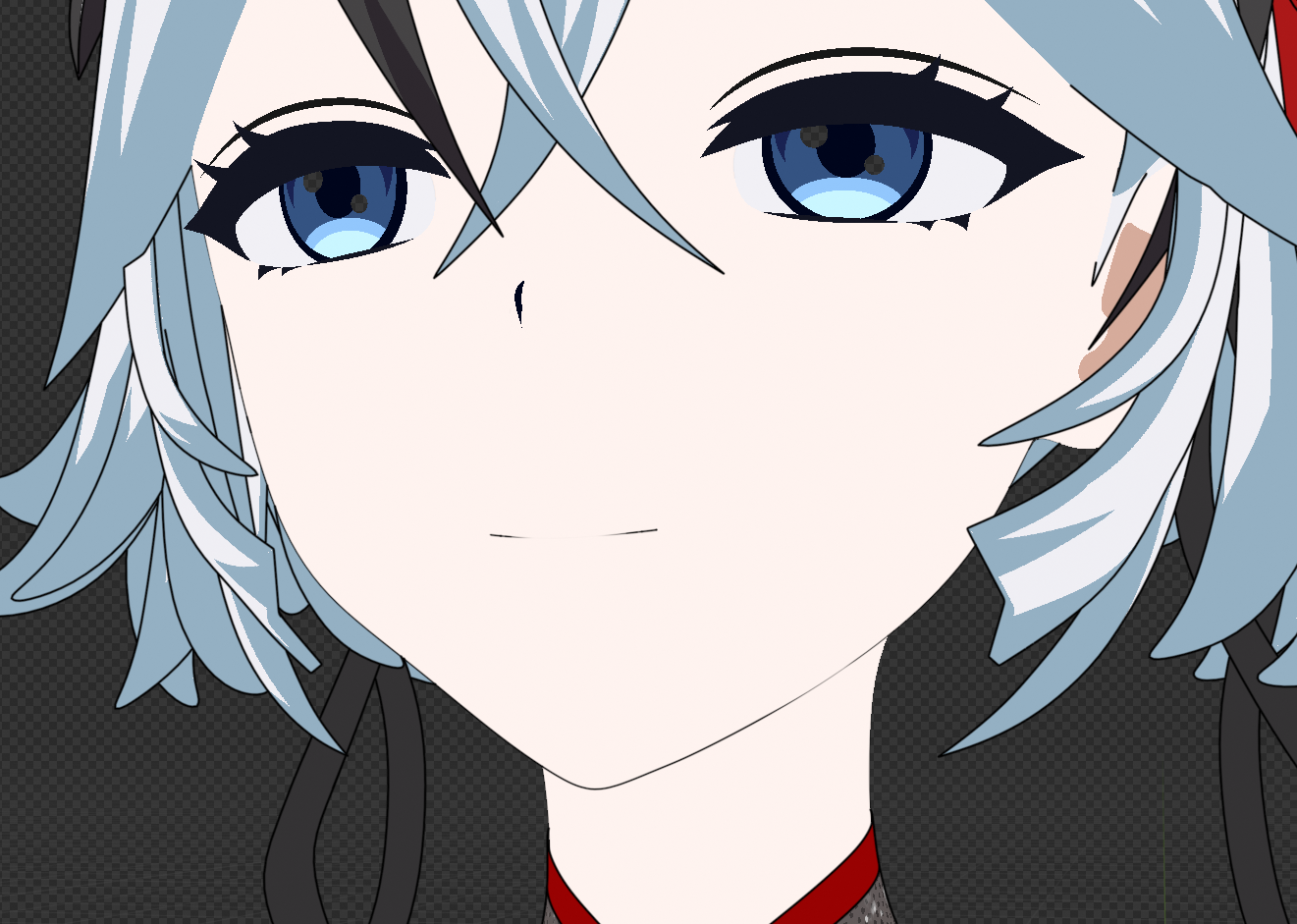
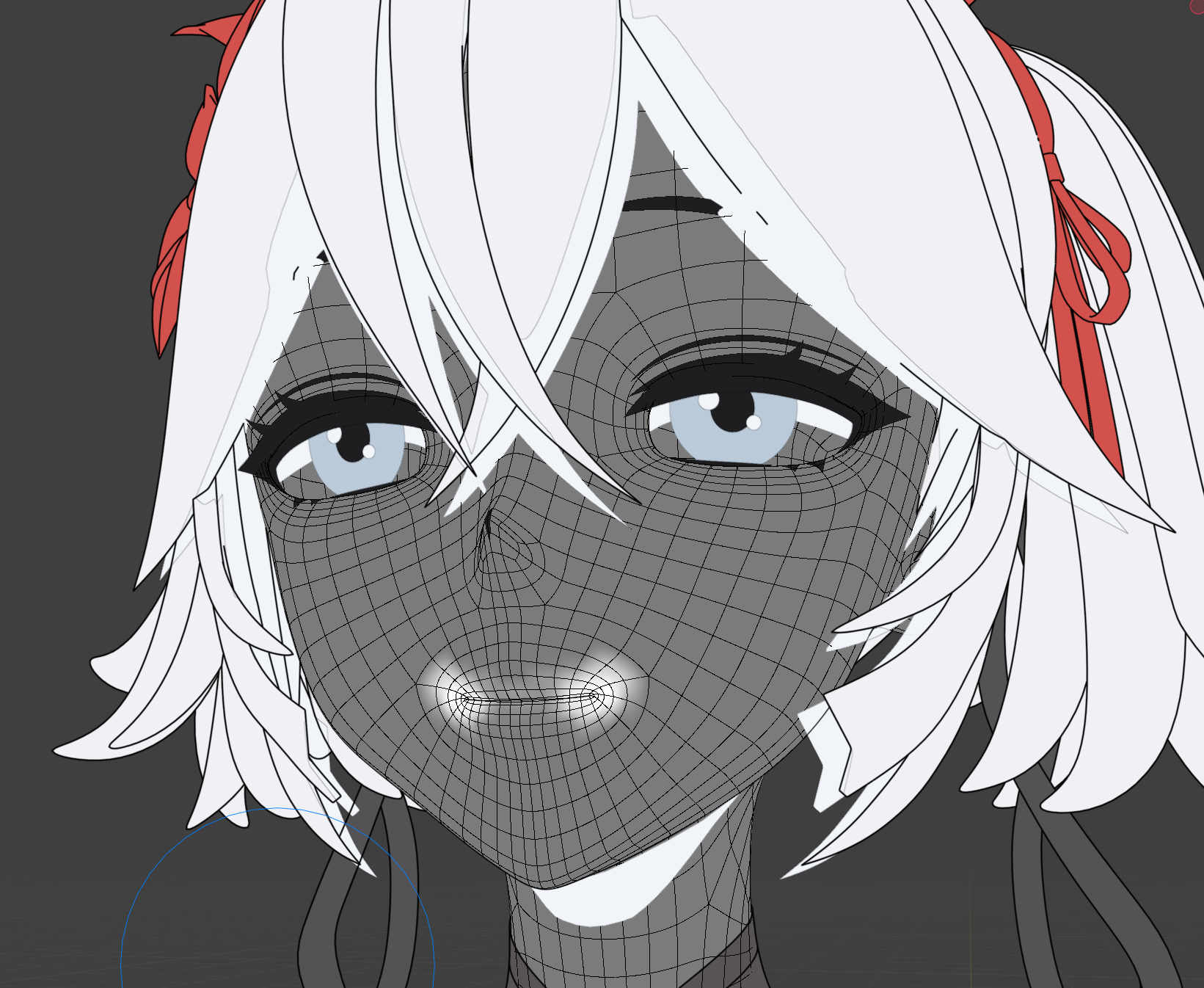
Example:
Here, I've used a Vertex Color Attribute to scale the line thickness higher at the corners of the mouth.
No comments to display
No comments to display