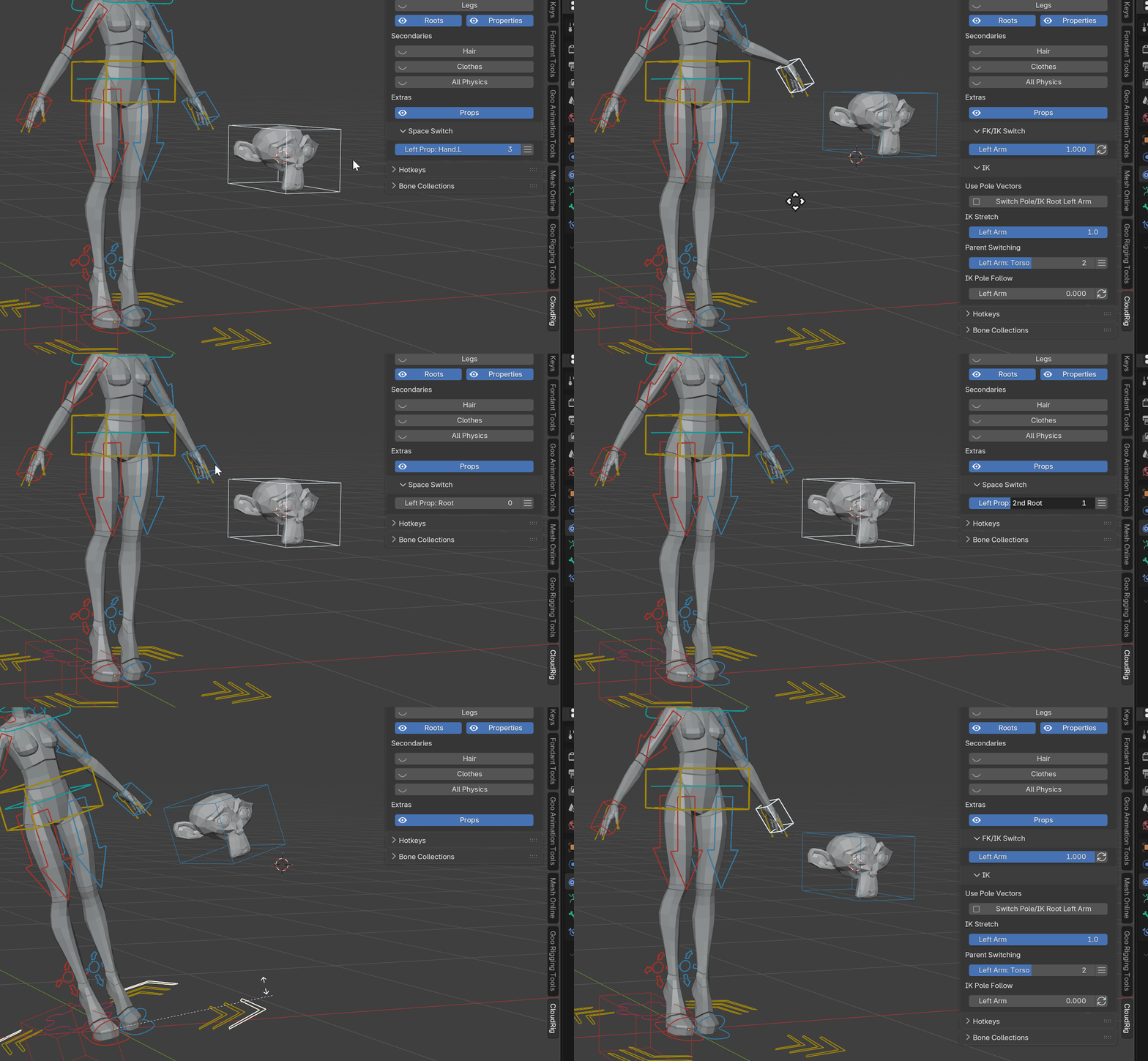
Animating Props
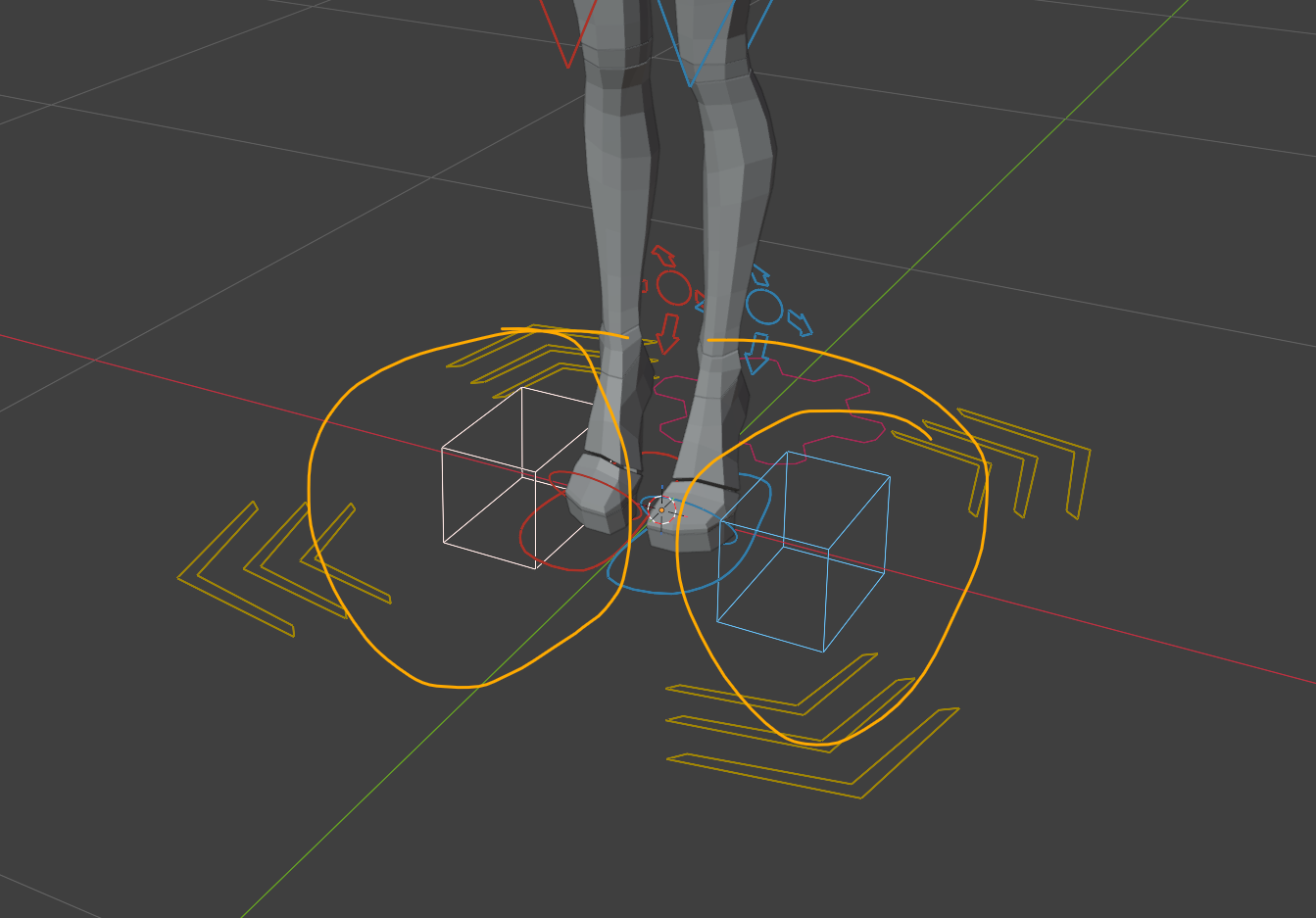
These are prop bones:
These two boxy bones at the base of the rig are Prop bones. They have a parent-switching property on them to make it easy to pick up and hold objects.
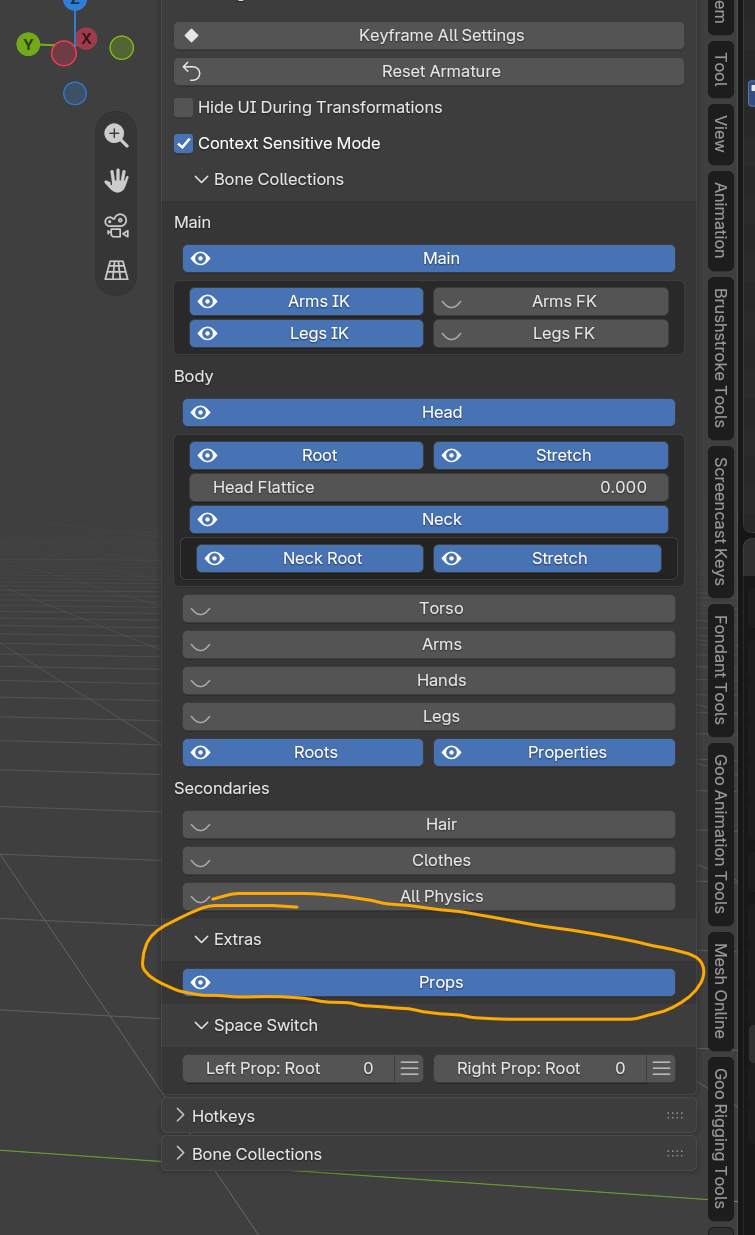
The bones can be revealed in the UI by turning on the Props visibility toggle under Extras:
How to pick something up:
Align the Prop bone with a prop that you want to control.
In this example, I snap the 3D cursor to the Suzanne's origin, and then snap the prop bone to the cursor. You can access this pie menu by holding Shift+S. Alternative search (F3) "snap" or "cursor".
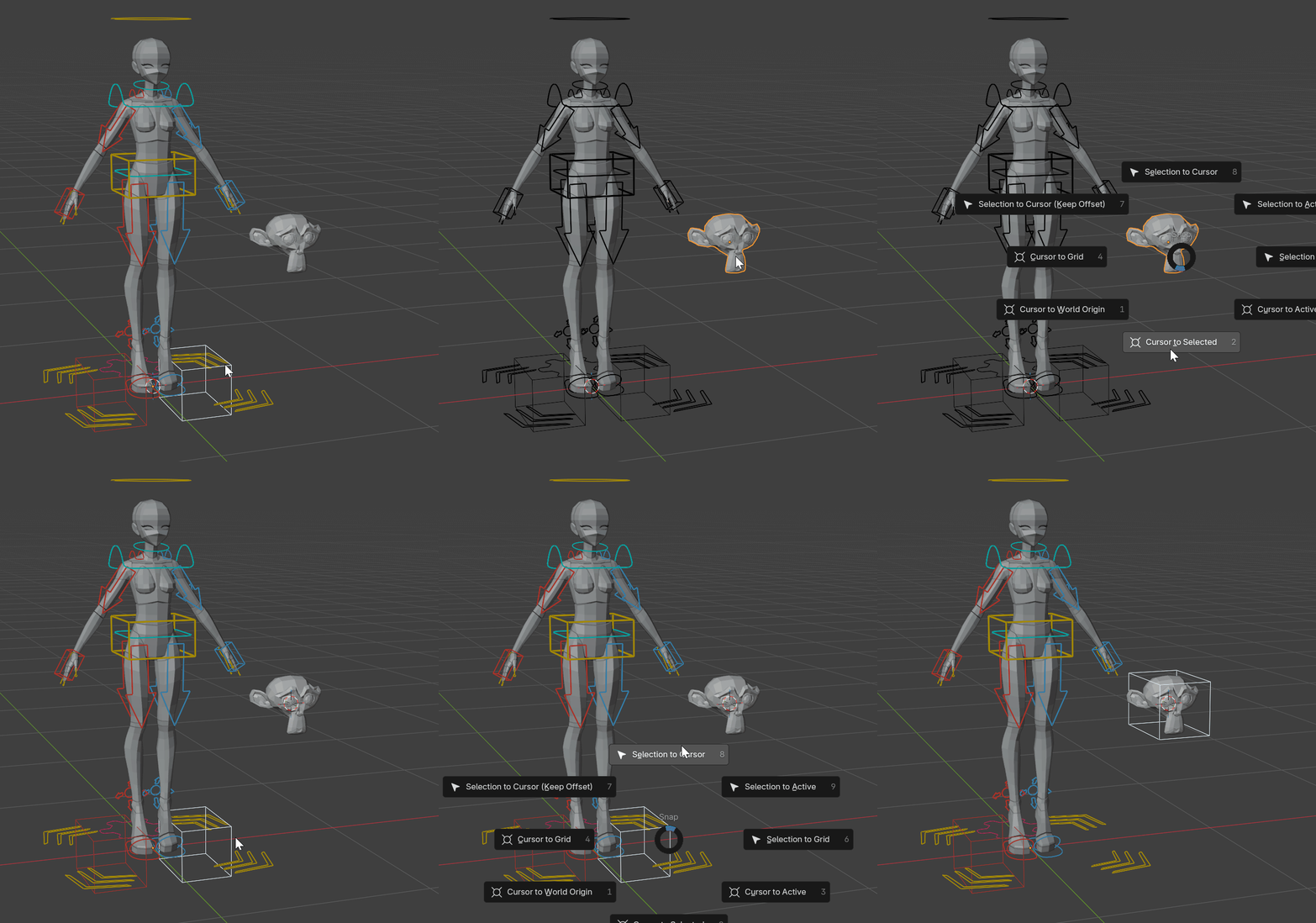
Next, with the prop object selected, add a "Child Of" constraint targeting the Prop bone you want.
Press "Set Inverse" if the transforms get skewed.
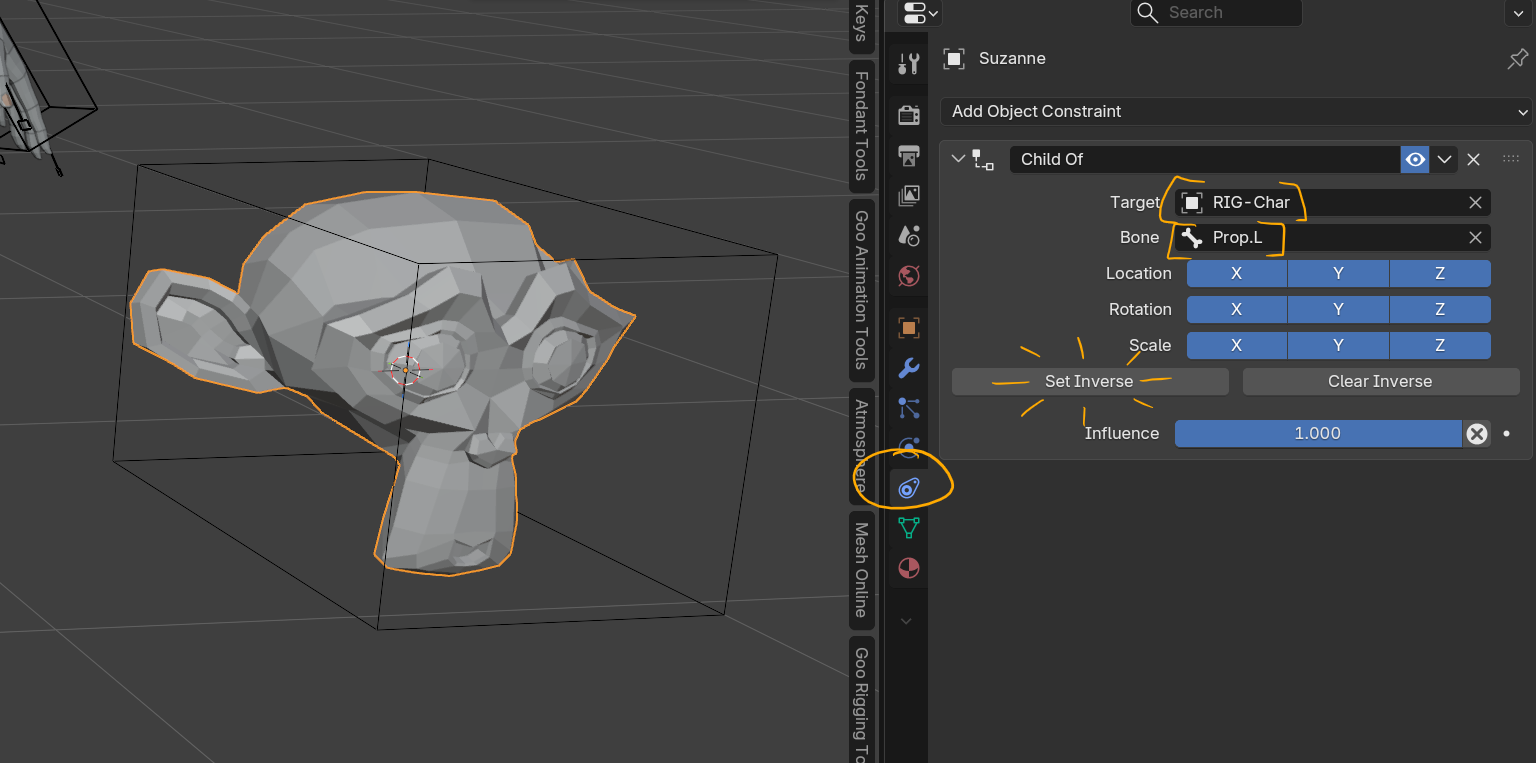
Now the prop object will go wherever the Prop bone goes. It will also follow it through Parent Switching.
Adding this Child Of constraint should be done BEFORE you animate. The parent switching system in the character rig itself is meant to handle all of the parent switching necessary for a shot.
You can still do whatever you want of course, but this is the best-practice.
With the Prop bone selected, you can access its parent switching in this menu in the Rig UI.
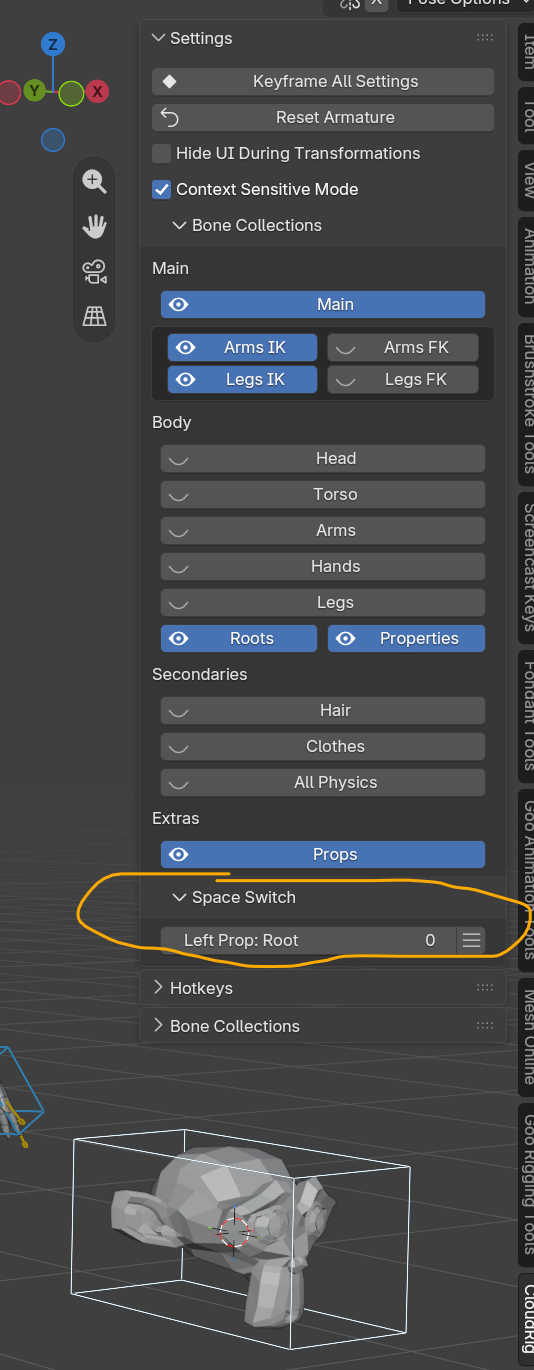
You can slide the slider to select a new parent
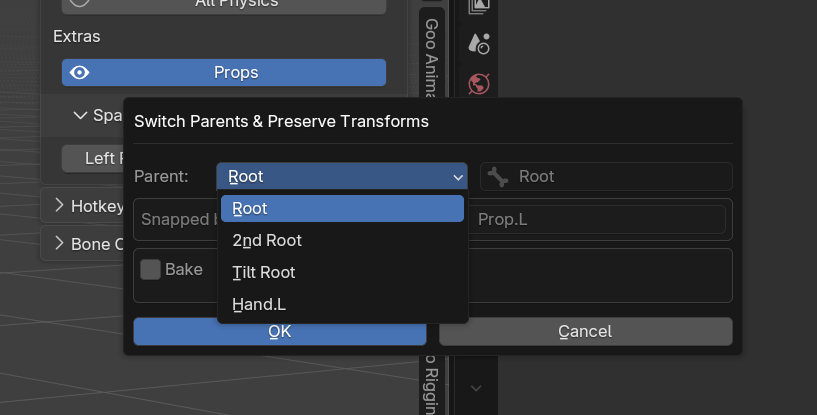
You can also click the hamburger menu on the end of the slider to access the bake option, which will change the object's parent from one bone to another and bake all the previous transforms into the new space.