Pipeline Tools
Installing and Using our suite of Pipeline tools
The Pipeline ™
The WS Pipeline is a set of organizational standards and automation tools meant to reduce the amount of "busywork" that occurs during production.
The WS Pipeline Tools are meant to be lightweight, minimally intrusive, and match existing Blender design philosophies so that it feels like a cohesive experience with a small learning curve.
The Pipeline Flow:
To generalize, this is the flow of a WS project:
- Yellow = Animation Production
- Blue = Asset Production
- Pink = Sound Production
- Green = Music Production
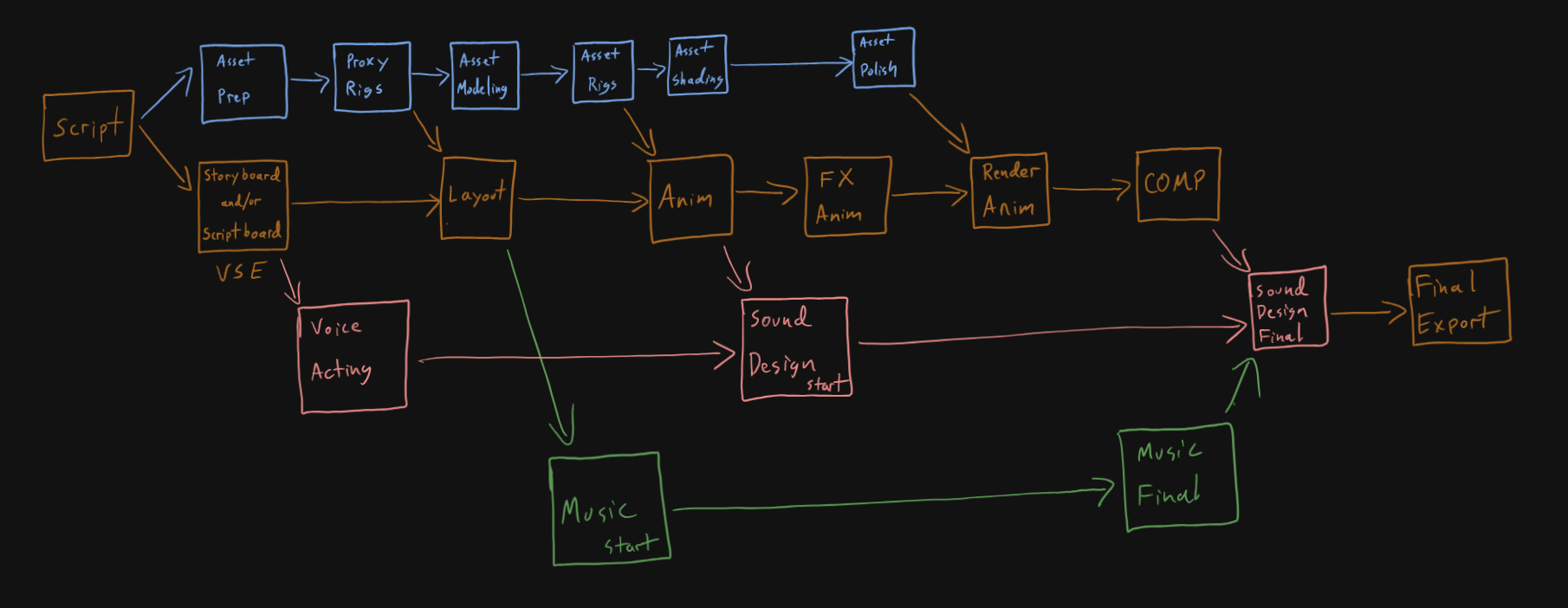
Every block is dependent on at least the Script, but most require information from some other aspect of the pipeline in order to begin. This chart, then, is also a map of the priority of tasks.
The Animation Pipeline:
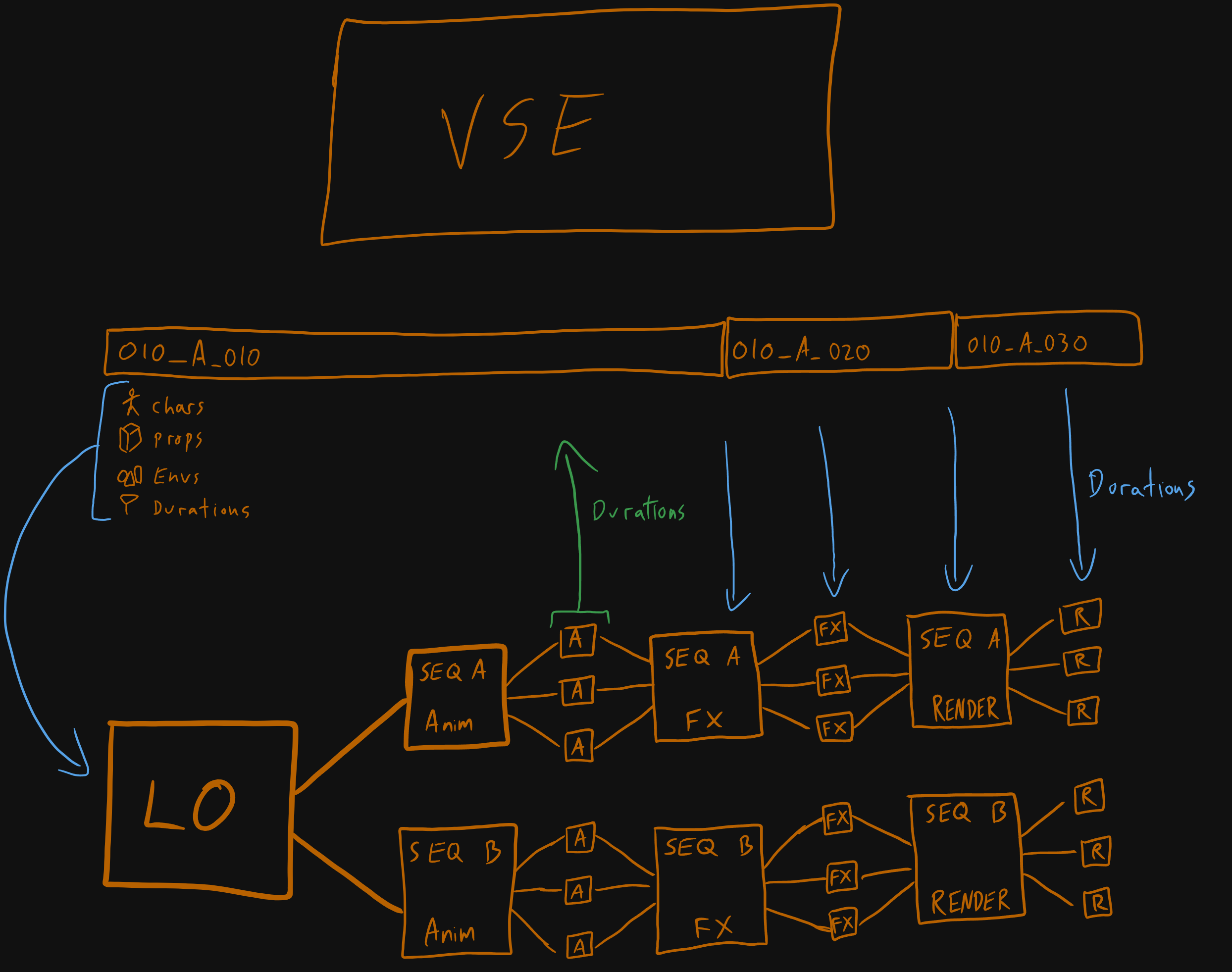
Starting with Storyboards/Scriptboards we can explore the Animation Pipeline in greater detail.
VSE/Edit:
The VSE (Video Sequence Editor in Blender) is the Command-Information-Center of the entire production. It should always hold the most up-to-date information for every shot in a project, and houses a suite of tools to help manage the production files from one place.
The VSE is also the first file created on a project. A rough edit will be outlined by a Director or Editor using storyboards or simple scriptboards. Shot Strips will be named in a pipeline compatible way with Scenes, Sequences, and Shots.
Each Shot Strip may also be Asset Tagged. Asset Tagging connects an existing Asset File to the Shot Strip so that it may be automatically loaded into the Layout, Anim, or FX files upon generation.
Layout:
Once the Shot Strips are named, tagged, and roughly timed, a Layout File can be generated. Each Layout File contains only the shots that share a scene, with each scene having its own Layout File. An artist may adjust shot duration and timings within a Layout File, as well as add extra assets if they choose.
Once Layout is complete, any timing or asset changes made get synced back to the VSE in preparation for generating Anim files.
Anim:
Anim files refer to both Sequence and Shot files. These are files that animators are assigned and in which they will do their work.
Typically, a Sequence will be a short collection of 3-4 shots. An animator may choose whether they want to animate in the Sequence file or the individual Shot files. There is no major distinction between the two as far as the Pipeline is concerned. The individual Shot files will be copies of the Sequence file until a Shot file is localized manually by an artist who wants to make shot-specific adjustments.
Note: Once you have localized an individual Shot file, any changes you make to that shot within the Sequence file will be completely overwritten.
FX:
Anim on Characters and Props is linked forward into the FX files. Like Anim, FX has both Sequence and Shot files, allowing an FX artist the opportunity to work on multiple shots at once.
LGT (Lighting):
Anim on Character and Props, as well as FX from the FX files, are all linked forward into the LGT files. This is where artists may make lighting changes.
Render:
Everything from all previous steps is combined into a master RENDER file. This is where View Layers and Render Properties are applied, and where the shot is rendered from.
Comp:
EXR sequences that are rendered from the RENDER file are brought into Comp files. (Need to develop Look-ID system)
WS Pipeline (Addon)
The Addon:
The WS Pipeline addon is the main Pipeline management addon for the WS Pipeline. It can be interfaced with from the VSE inside of Blender, and is meant to be used in conjunction with the VSE itself.
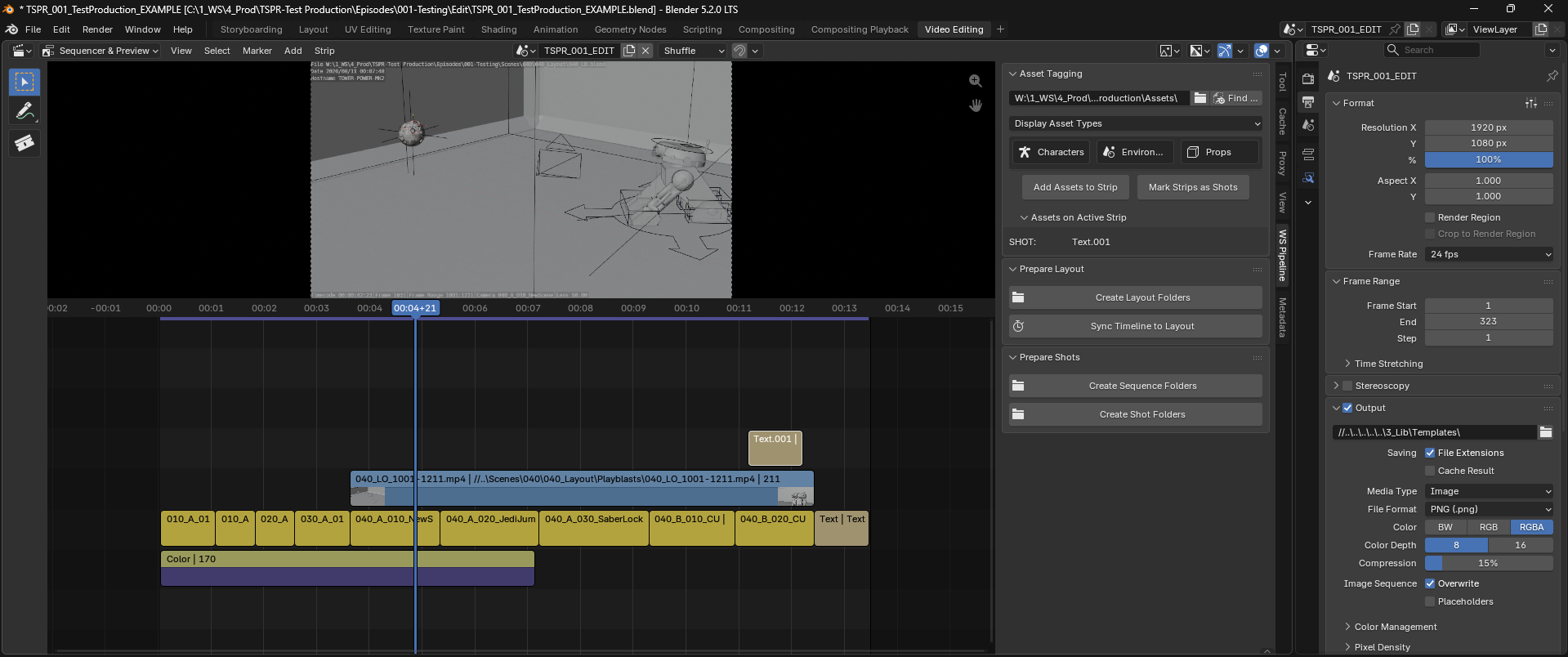
To access the addon, open the Sidebar (N-panel) in either of the Video Sequencer windows.
Preferences Menu:
Before diving into using the addon, there are some settings in Preferences that should be double-checked.
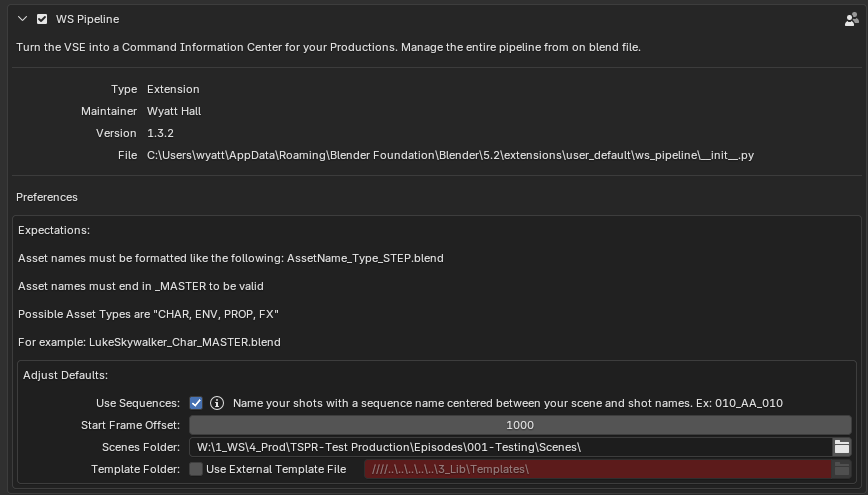
In addition to a quick reference for Asset File naming conventions, there are a series of defaults that can be tailored to your desired specifications.
- Use Sequences: When true the addon will assume your shots have a Sequence identifier between Scene and Shot identifiers.
Ex: 010_A_010 where 'A' is the Sequencer identifier. - Start Frame Offset: When generating the Layout and Shot files, the start frame will be offset by this amount.
- Scenes Folder: This is the folder in which all Layout and Shot folders and files will be created.
- Template Folder: If you want to use your own shot templates, you can point the addon to an external folder of your choosing. By default the addon uses its own internal templates.
Naming Shots:
The Pipeline will assume that your shots are already named correctly. Be sure that you set the name of the shot in the "Name" field of the strip properties, and not in the "text" field.
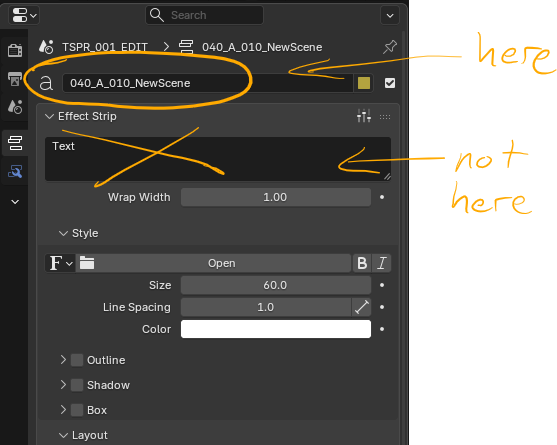
The Strip Name is used to name shot files and folders. The Text field may hold any information (like a description of the shot), and will not be used in the pipeline.
Any of the following shot names are compatible with the pipeline:
- 01_01_00_NewShot
- 010_A_010_NewShot
- Sc01_Seq01_Sh01_New-Shot
- NewScene_NewSeq_NewShot
If you are not using sequences, simply do not include the Sequence identifier between the Scene and Shot.
Tag Strips as Shots:
You may have any number of strips present in your VSE timeline, but the addon needs to know which specific strips are actually Shots.
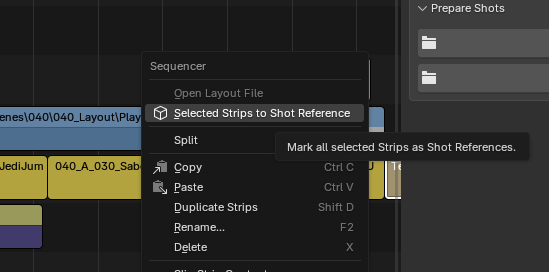
You may select any number of strips, right click (or 'w') and select "Selected Strips to Shot Reference"
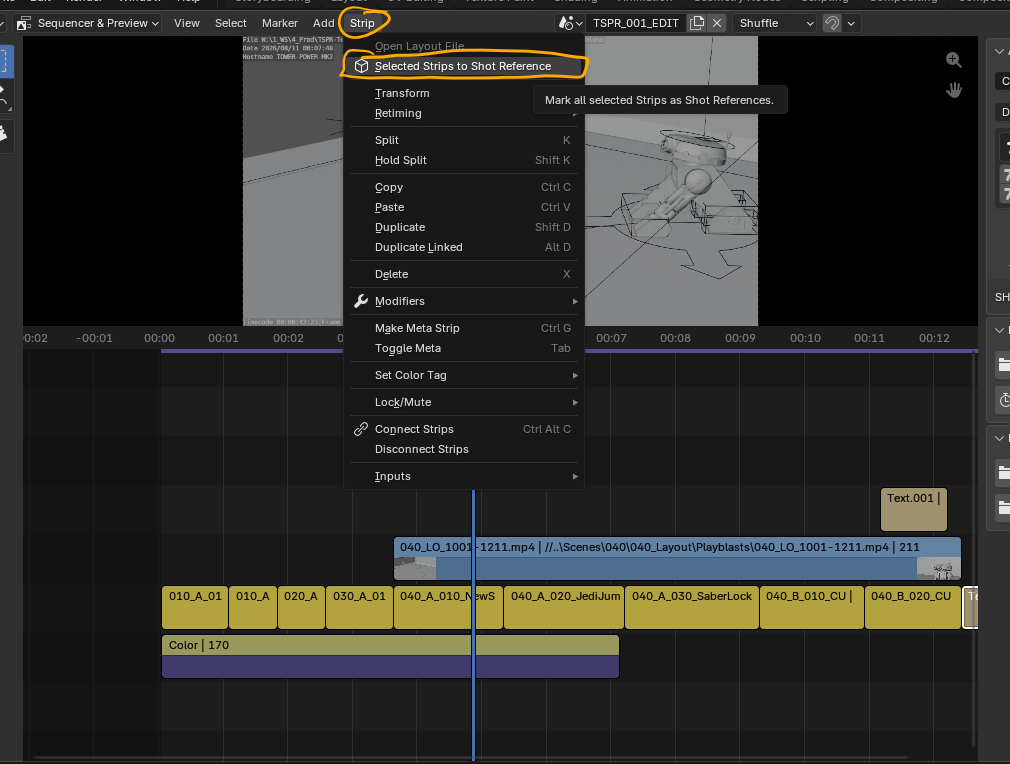
You may also press the button in the addon called "Mark Strips as Shots"
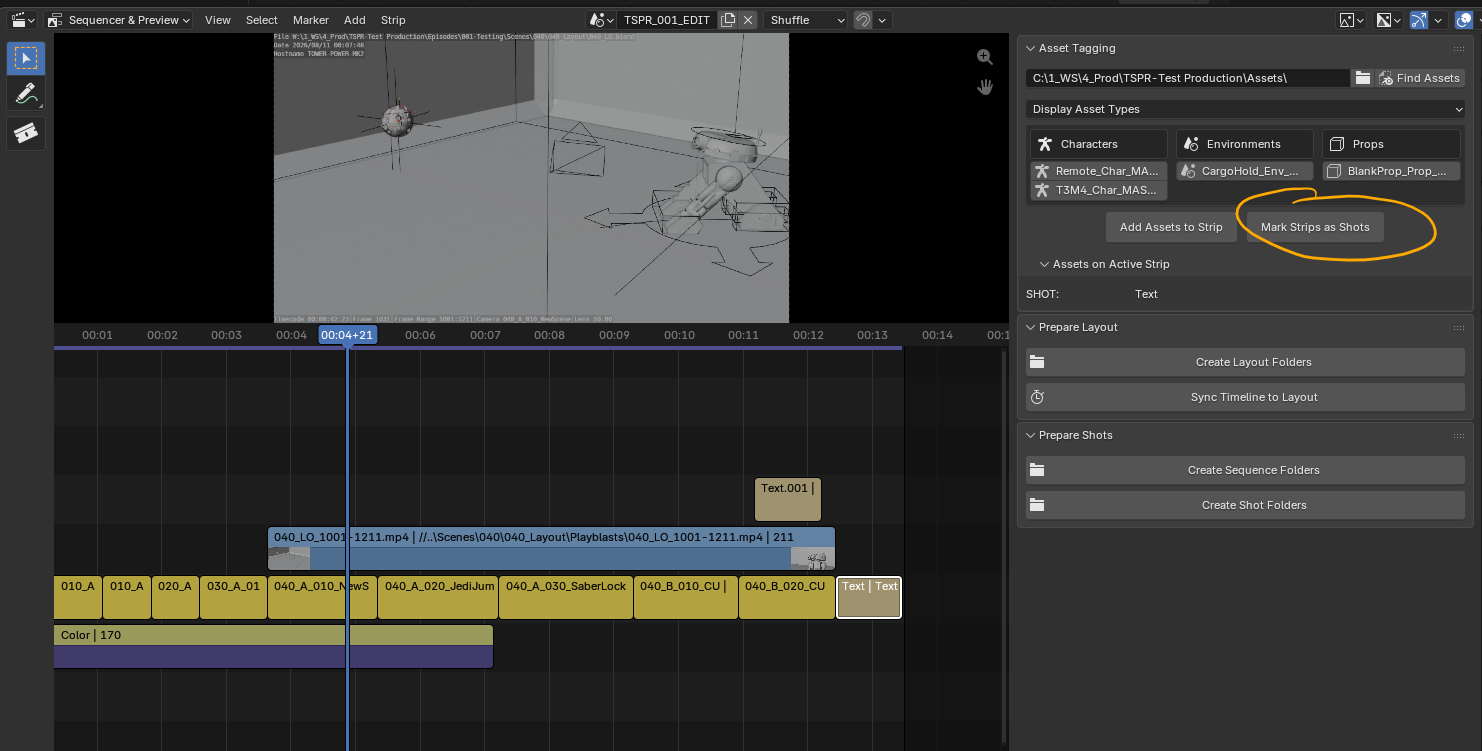
They all do the same thing (todo: give them the same name)
Asset Tagging:
To start Asset Tagging, connect the addon to your project's Assets folder.

At the top bar of the Asset Tagging section, browse to a folder that contains all the Assets for your project. Then, click "Find Assets"
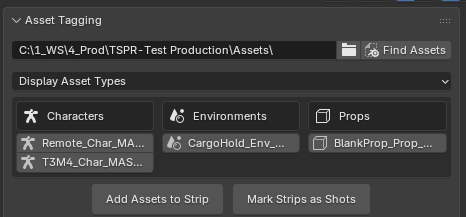
The Asset Type fields will show pipeline-valid files that include "_MASTER" in their names.
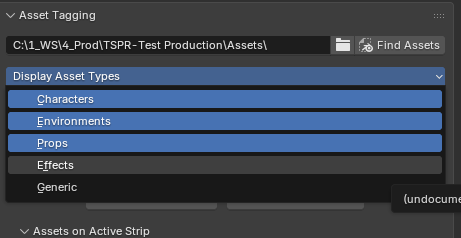
You may reveal additional Asset Types from the dropdown above the menu.
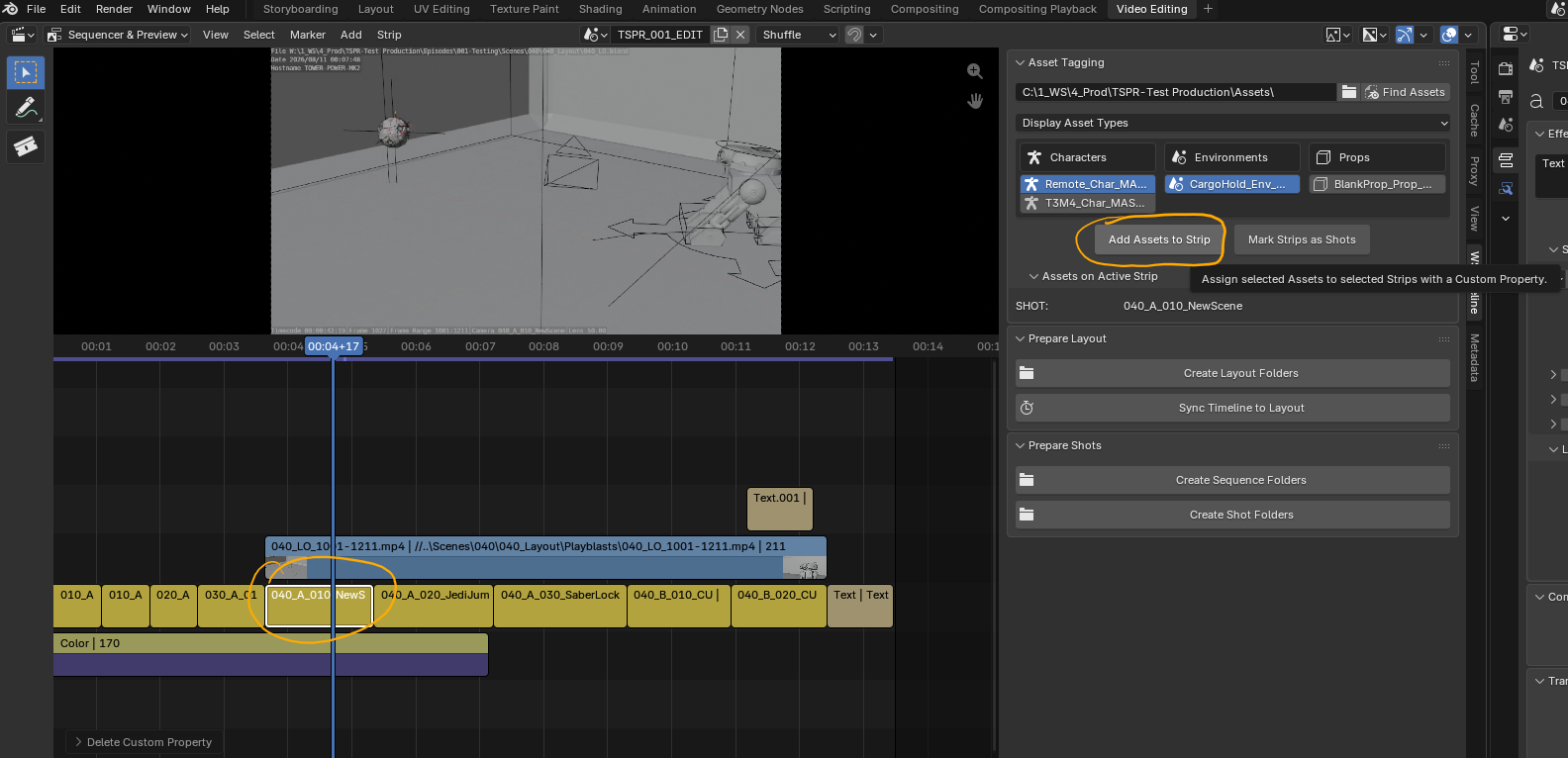
To tag a strip with assets, first select a strip or strips.
Use Shift+Click in the Asset Tagging menu to select one or several assets.
Finally, click "Add Assets to Strip". The selected assets will be tagged on any selected strips.
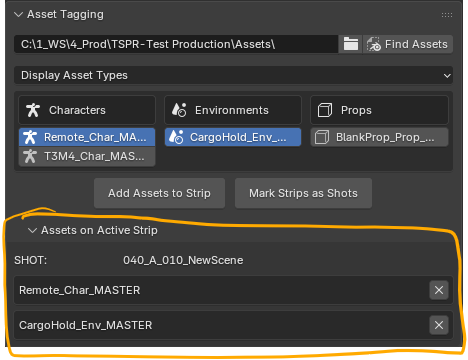
The active strip's tagged assets will appear in the "Assets on Active Strip" dropdown below the Asset Tagging menu.
Progress through your entire timeline until you've tagged every strip with the relevant assets.
Generating Layout Files:
Once you've completed your storyboard edit, you may use the addon to quickly and automatically generate Layout files and folders.
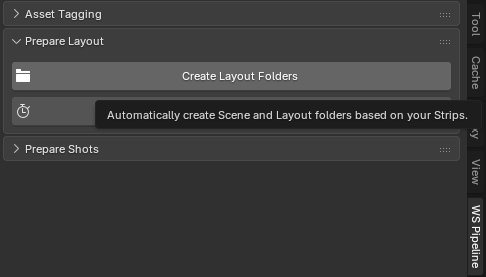
This is meant to be a one-click solution. Click it, and it will create the folder hierarchy within your Scenes folder, as well as set up Layout blend files. Any assets that were tagged to a scene will automatically be linked into the Layout blend file.
The template for this file is included internally in the addon. You may use an external file as a template by setting it in Preferences.
Update Timeline to Layout Changes:
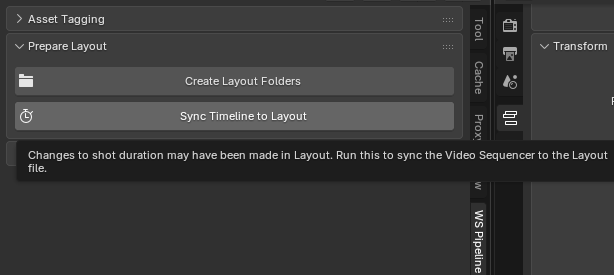
After a Layout artist has made changes to shot timings or scene duration in a Layout file, you may press "Sync Timeline to Layout" to automatically read the Layout file and apply the changes to the VSE Timeline.
Create Sequence Files:
Todo
Create Shot Files:
Todo
Shot Management(?)
Todo